 SpeechBee
Guide
Have your Mac read emails aloud
Listening to a long email is easier on the eyes, and listening to your own reply before you send it catches the mistakes you read past. Your Mac can do both for free. Here's how in Apple Mail, Outlook and Gmail.
By the SpeechBee team, who make SpeechBee. Checked on 14 October 2026

On this page
Apple Mail
- Turn on Speak selection in System Settings, Accessibility, Read & Speak.
- Open the email. Select the part you want to hear, or press ⌘A in the message to select it all.
- Press Option-Esc, or choose Edit, Speech, Start Speaking.
- Press Option-Esc again, or choose Stop Speaking, to stop.
In the Speak selection options you can change the voice, the speaking rate and the shortcut, and turn on highlighting so you can follow along.
Outlook for Mac
Microsoft's advice for Outlook for Mac is to use the Mac's own feature: with Speak selection on, select the text in the message and press Option-Esc, just like Mail. Outlook's Immersive Reader, which reads a message with word highlighting, is documented for Outlook for Windows and Outlook on the web, so it's an option if you open Outlook in your browser.
Gmail in a browser
Gmail has no read-aloud button. Select the text in the email and press Option-Esc; Speak selection works in Safari and Chrome. Chrome's own Read aloud in the side panel reads web pages, which also covers an open email in many cases. See read aloud in Chrome on a Mac.
Listen to your own reply before you send it
Your eyes fill in the word you meant to write. Your ears don't. Select your draft, press the shortcut, and listen at a slightly slower speed. Missing words, doubled words and sentences that run on stand out straight away. More in proofread by listening.
A natural voice in every mail app
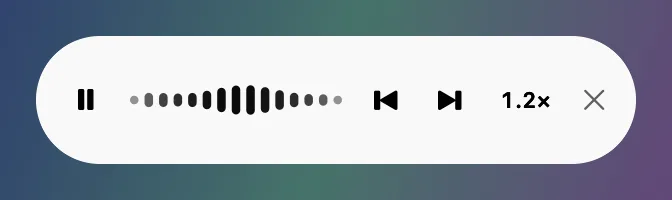
The built-in voices work, but some sound flat over a long email. SpeechBee, which we make, reads selected text in Mail, Outlook, Gmail or any other app with a natural voice that runs on your Mac: select the text and press the right ⌥ key. A small player lets you pause, skip and change speed. The email isn't uploaded to be read. Voices depend on the language.
SpeechBee also works the other way round: hold the right ⌘ key in the reply box, talk, and your reply is typed. See voice to text for email and Slack.
Hi Maya, I'll send the revised proposal tomorrow morning.

Most people read faster than they speak. SpeechBee reads the sentence you selected out loud, while you keep working.
Hear your inbox in a natural voice. Free for 7 days.
Voice to text and Read Aloud on your Mac, iPhone and iPad. After the week, $9 a month, $79 a year, or $99 once. Every plan has every feature.
Questions
Can my Mac read my emails out loud?
Yes. Turn on Speak selection in System Settings, Accessibility, Read & Speak, select the email text and press Option-Esc.
How do I make Apple Mail read an email?
Select the text and choose Edit, Speech, Start Speaking, or press Option-Esc with Speak selection turned on.
Can Gmail read emails aloud?
Gmail has no read-aloud button. On a Mac, select the text and use Speak selection, or Chrome's Read aloud.
Why doesn't Option-Esc read anything?
Speak selection is probably off, or the shortcut was changed. Check System Settings, Accessibility, Read & Speak, and make sure text is selected first.
Keep reading
Sources
Checked on 14 October 2026.