Guide
How to read a PDF aloud on a Mac
Your Mac can read a PDF out loud for free with the tools it already has. Open it in Preview, select the text, and press Option-Esc. Here is how to set that up, what to do when the text won't select, and the options when you want a better voice or a whole book read to you.
By the SpeechBee team, who make SpeechBee. Checked against Apple's Mac User Guide on 12 October 2026

On this page
Read a PDF aloud with Preview, free
- Open System Settings, click Accessibility, then Read & Speak, and turn on Speak selection.
- Open your PDF. Preview opens PDFs by default on a Mac.
- Drag to select a passage, or use Command-A to select all the text.
- Press Option-Esc and your Mac reads it aloud. Press it again to stop.
Apple notes that if nothing is selected, your Mac reads the text items available in the current window. In many apps you can also choose Edit, then Speech, then Start Speaking.
Make it easier to follow
In Read & Speak, click the info button next to Speak selection to:
- Highlight words, sentences or both as they are read, in colors you choose.
- Show the controller, a small panel for pause, speed, and skipping a sentence forward or back. Apple says it is especially useful for long text.
- Change the shortcut if Option-Esc clashes with another app.
For a voice that is easier to listen to for longer, open the System voice menu in the same settings and download a different voice. Our guide to text to speech on a Mac walks through it.
When the text won't select: scanned PDFs
If you can't highlight words in the PDF, it is a scanned image of a page, not text. Speak selection has nothing to read. You need optical character recognition (OCR) first. Reading apps such as NaturalReader (on paid plans) and Speechify (with Scan & Listen on Premium) do this for you.
Reading a whole book or long report
Speak selection is fine for a few pages. For a 200-page report you will want an app that imports the file, remembers your place and reads continuously.
| App | What it does with PDFs | Price |
|---|---|---|
| Speak selection | Reads what you select, built in | Free |
 NaturalReader NaturalReader | Imports PDFs and other documents, OCR and MP3 export on paid plans | Free plan, paid from $79/yr |
 Speechify Speechify | Reads PDFs and documents, scans printed pages | Free plan, Premium about $139/yr |
 Voice Dream Voice Dream | Imports PDFs and other files on iPhone, iPad and Mac | Free download, in-app purchases |
 SpeechBee SpeechBee | Reads text you select in any app, including a PDF, with natural local voices | $79/yr or $99 once |
SpeechBee, for reading what you select
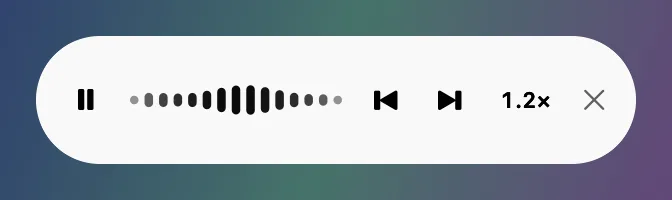
SpeechBee is the app we make. Select text in a PDF, or in any other Mac app, and press your reading key. A natural voice reads it, with a small player for pausing, skipping and speed. The voices run on your Mac, so the document never leaves it, and it works offline.
Be clear about what it isn't. SpeechBee reads up to 5,000 characters per selection, so you read a long PDF a section at a time. It does not import files into a library, remember your place across a book, or read scanned pages. If that is what you need, a dedicated reader above is the better tool. SpeechBee is for the PDF you are working with right now, and it also does dictation.
Hi Maya, I'll send the revised proposal tomorrow morning.

Most people read faster than they speak. SpeechBee reads the sentence you selected out loud, while you keep working.

Hear any text in a natural voice, on your Mac. Free for 7 days.
Voice to text and Read Aloud on your Mac, iPhone and iPad. After the week, $9 a month, $79 a year, or $99 once. Every plan has every feature.
Questions
How do I get my Mac to read a PDF out loud?
Turn on Speak selection in System Settings, Accessibility, Read & Speak. Open the PDF in Preview, select the text and press Option-Esc.
Can Preview read PDFs aloud?
Yes, through macOS Speak selection. Select text in Preview and press Option-Esc, or try Edit, Speech, Start Speaking.
Why won't my Mac read my PDF?
Check that Speak selection is on. If it is and nothing happens, the PDF is probably a scanned image with no selectable text. It needs OCR first.
What is the best free PDF reader that reads aloud on a Mac?
Preview with Speak selection is free and built in. NaturalReader and Speechify have free plans with basic voices if you want a dedicated reader.
Can I make a PDF into an audio file on a Mac?
Speak selection reads aloud but doesn't save audio. NaturalReader's paid plans export MP3 files.
Keep reading
- How to make your Mac read text aloud
- NaturalReader pricing
- Speechify alternatives for Mac
- Voice Dream Reader alternatives
Sources
All checked on 12 October 2026.